
WPWebHost awarded with TRUSTe Privacy Seal
MAY 12, 2011 − WPWebHost, a hosting company acquired by Exabytes Network Pvt. Ltd on 2008 has recently been awarded TRUSTe Privacy Seal effective from 5th May 2011 by TRUSTe , a company which operates the world’s largest privacy seal program, certifying more than 3,500 websites including Facebook, Microsoft, Apple Inc., eBay and many more. WPWebHost, a key industry player in the niche market of WordPress hosting had been keen to obtain the Privacy Seal by TRUSTe to ensure a peace of mind among its customers when providing personal information for online purchases as well as greater confidence regarding the handling of consumer data by WPWebHost. “Not only do we want to assure our customers the best privacy practices at WPWebHost, we are fully aware that privacy and data security practices keep evolving nowadays. With the award of TRUSTe Privacy Seal, we are confident to constantly keep up with the evolving regulatory standards of online privacy,” Luis Ku, the manager of WPWebHost was quoted as saying. TRUSTe earlier introduced the concept of ‘Truth in Privacy’, which incorporated the privacy values of transparency, choice and accountability. According to its CEO Chris Babel, thousands of companies rely on TRUSTe’s leading privacy trustmark to enhance consumer trust, drive increased registrations and transactions, and comply with complex privacy requirements. Consumers know that when they see the TRUSTe seal they can “Click with Confidence” because the certified website is responsible with their personal information. TRUSTe has certified more than 40 percent of the top fifty websites including Facebook, Yahoo, Microsoft, eBay, AOL, Adobe, AT&T, Comcast, Disney, Weather.com, Apple, LinkedIn, Web MD, and Yelp. “At WPWebHost, we understand customer concerns more than anything else. We greatly welcome the recent award of TRUSTe Privacy Seal in line with our constant effort to increase customer satisfaction,” according to Luis.
[COMPLETED] Scheduled CDN System Upgrade
Date: 2011-05-12 (Thursday) Start time (MYT): 20:00:00(GMT+8) End time (MYT): 22:00:00(GMT+8) Services affected: Portal and API Maintenance Details : Upgrade work for the current production system to V2.15.1. Effect of Maintenance : CDN delivery will continue working as usual. Portal and API access will probably be offline for up to two hours. Customers will therefore be unable to add/edit sites or servers during this outage window. Best Regards, Support Team ……………………………….. Technical Department
Scheduled Server Maintenance – WP05 72.18.130.89
Date: 12 May 2011 Start Time: 12:00AM MDT Estimation Time: 1-2 hour Maintenance Impact: Apply Custom Kernel and reboot the server to apply the resource limit setting. Maintenance Effect: All services such as Web, Email and MySQL will be interrupted during the reboot. ==================== In order to improve our services from shared environment server, we are always looking a ways to improve the performance of the server. We will convert the current shared environment server to run custom kernel which will improve stabillity, optimize server density and reduce downtime from the web services. Q&A: === 1. What I need to do if my web site is hosted on this server? – Basically you do not need to do anything. We WPWebHost Technical Support will take care of everything during this maintenance. 2. What is the different with previous shared environment with custom kernel? – Custom kernel enhances the resource allocation among shared hosting accounts. It helps to improve the stability of the shared hosting server to avoid one account to fully utilize the server resource, and affects other shared hosting account at the same time. 3. What is the resource limit being set? – It will be following the shared environment server resource available from our product page such as detail below. CPU Usage: 15% of the server CPU (please note that the server is running 8 cores CPU) Concurrent Connection: 20 Memory Usage: 384MB 4. Why you said the CPU usage is 15% only but I am getting more than 15% from my cPanel stats bar? – The information show from your cPanel statistic bar is your account current usage but not the whole server usage. 5. Can I disable resource limit from my account? – The answer is simply no as it is applied to the server wide. 6. How can I increase the limit of the resource Setting? – Unfortunately you are not allowed to do that, you could contact the support team to get any advice. 7. Why I’m getting Error 503 Service Temporary Unavailable error on my site? – It is more likely the restricted concurrent connection hit, you shall consider upgrade your hosting account to higher level package to suit your webhosting needs. 8. Why I’m getting Error 500 Internal Server Error on my site after the upgrade? – It is more likely the restricrted memory resource hit, you shall consider upgrade your hosting account to higher level package to suit your webhosting needs. Best Regards, Support Team ……………………………….. Technical Support Department
Introducing Tokokoo, the WordPress E-commerce theme developers
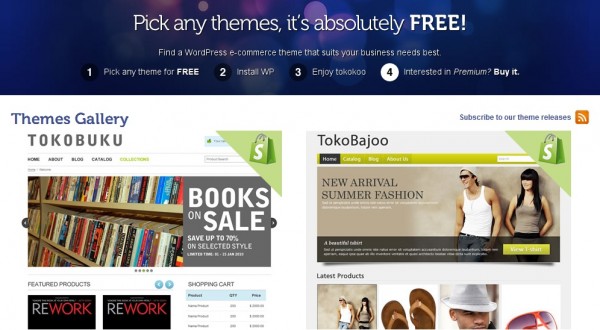
Tokokoo is a quality WordPress site with ecommerce themes to help you build your business online. Most importantly, it’s free! Check out their themes.
5 Simple Ways To Housekeep WordPress Dashboard
WordPress itself is a very cool platform for blogging and no wonder it is voted as the one of the most preferred CMS in the world. Now if you are one of WordPress user, ask yourself how frequent do you run housekeeping as below simple ways 1. Removing unwanted or inactive plugins. 2. Removing unauthorized authors and disable user registrations if the function is not required. 3. Removing old or unused themes. Theme files tend to use up a lot of diskspace especially the themes with integrated frameworks. 4. Clear your posts and pages trash. There is no point keeping this trash if you have deleted it at first. If you feel like you will need it in the future, change it to draft instead keeping them in trash. 5. Trash your spam comment frequently if you have spam blocker plugins like Akismet is activated. It will eventually spare up thousands of entries on your database. By practicing the above, you will get to free up your hosting disk space and unclog your database entries with only the vital information and eventually your WordPress blog will load faster. As for you yourself, you will feel much more clean and easy to workaround your WordPress. Trust me, your body will feel more relaxed too with clean working environment. 🙂
Meet Us at WordCamp Indonesia 2011

WordCamp is coming again! This time the event will be taking place in Jan 29-30, 2011 in Bumi Sangkuriang, Bandung. WordCamp is a gathering designed for the WordPress community, from casual users to developers together participate, share ideas and learn from each other. WPWebHost and our hosting partner, InstantCDN.Asia are proud to become the sponsors for WordCamp Indonesia 2011. Not only that, we will be one of the participants in this wonderful event. Standard admission fee is USD 28. Contact us by email to admin@wpwebhost.com/staging and we can get you an admission ticket for only USD25! So don’t miss this exclusive deal brought to you by WPWebHost. For more info on WordCamp Indonesia 2011, visit http://wordcampindonesia.com/ We are looking forward to see you there!
Customizing your sidebar to optimize your WordPress
A blog’s sidebar is one of it’s key features; other than the header and your content, it’s one of the best and easiest places to add links, advertisements, or widgets to help your readers out. But what exactly should you put in it? How much is too much? Read on! 1. Don’t Overdo It! Many new bloggers go overboard with the sidebar and stuff it with whatever they fancy: little games, maps, Google friend connect, chat boxes, you name it. Don’t do this! Of all the mistakes you can make with a sidebar, putting too much stuff in it is probably the worst. Adding too much stuff makes your blog look cluttered, ugly, and spammy, especially if you put up too many ads. You want to have a small, helpful, and reasonable sidebar, not one that’s overloaded with unnecessary stuff. What to Do: Make sure you aren’t adding anything to your sidebar that isn’t necessary, and make sure everything that is in the sidebar has a purpose. 2. Add An “Archives” Widget One of the basic things to add to your sidebar is the “archives” widget. While many bloggers put this widget up, not many know it’s full potential. First off (and most obviously) the archives widget shows all the posts you published in a certain time period. (Usually in months.) You and your readers can thus easily navigate to your monthly posts. Also, if you have nofollow disabled in your sidebar, it’ll transfer link juice to all of your posts, effectively raising the pagerank of your blog. What to Do: Either add the built-in archives widget in wordpress, or try out one of these plugins: (http://wordpress.org/extend/plugins/collapsible-archive-widget/) (http://wordpress.org/extend/plugins/breukies-archives-widget/) (http://wordpress.org/extend/plugins/awsom-drop-down-archive/) Customize the archives widget to not go back too far, but still cover several months. 3. A Big, Easy to Use, & Attractive RSS/Email Subscribe Form Most people put a subscribe button somewhere in their blog, but not many do it right. One of the best places to put an RSS subscribe button is on the top of your sidebar. However, don’t just put up any RSS subscribe button, put in one that also has a easy way to receive posts via email. Make it look good, make it attractive, and don’t forget to make it easy to use. This will prevent readers from no subscribing simply because they can’t find a subscribe button. What to Do: Create an attractive and appropriate RSS/Email subscribe button, and add it to your sidebar, preferably near the top and in a dominant position. Make sure it has a form where the reader can enter their email to receive posts. You can do this by using a plugin (http://wordpress.org/extend/plugins/subscription-options/) or coding it yourself in HTML Let your readers know what the button does by writing a post on what RSS is! 4. A “Top Commentators” Plugin Using a “Top Commentators” plugin (I highly recommend this one: http://www.wordpress.org/extend/plugins/nofollow-free) Is one of the best things you can add to your sidebar. This plugin not only displays your most loyal commenters, but it displays a dofollow link to their homepage (if they have one.) This encourages comments on your blog, helps your loyal readers to come back to comment more, and helps out those who comment on your blog without you doing anything – It’s a win-win situation! What to Do: Install this plugin: (http://www.wordpress.org/extend/plugins/nofollow-free) Tweak it to fit your needs. Let your readers know that whenever the post a comment, they’re heading toward getting a link to their own blog on your sidebar. 5. A “Popular Posts” Widget Displaying your best and most popular posts is one of the most effective ways to gain loyal readers. Sending readers directly to your best content is a sure way to show them what you’re capable of, and easily lets them know if they’re going to like your blog or not. What to Do: Display your best post by either linking directly to them, or by using plugins such as these: (http://wordpress.org/extend/plugins/wordpress-popular-posts/) & (http://wordpress.org/extend/plugins/wordpresscom-popular-posts/) These five steps are only the beginning to what you can do with your sidebar. One of the most important aspects of changing your sidebar is that: You don’t make changes too quickly without reason! Change is not necessarily a good thing in your blog; you want your readers to be able to identify and recognize the look of your blog. So make changes, by all means, but don’t change ridiculous amounts without any rest inbetween. You ask what your readers want. Your blog is for your readers; find out what they want in your sidebar (as long as they have reasonable suggestions) and do it! If you follow these two rules, your sidebar will soon be a solid, central part of your blog that’ll improve your readership and make it easier to use. Happy blogging!
How To Help The WordPress Community And Improve Your WordPress Interaction: Part 2
This is part 2 and final part of the article ‘How To Help The WordPress Community And Improve Your WordPress Interaction.’ You would be well-advised to read part 1 of this article before going through the following if you have missed it.
How To Help The WordPress Community And Improve Your WordPress Interaction: Part 1
This post is a list of things and ideas that WordPress users and lovers all over the world can do to make the WordPress community even better. This how-to post has many tips and ideas that will help WordPress users appreciate and understand WordPress in a better way.
5 Major Statistics Plugins for WordPress

Statistical plugins are very important for blog administrators and writers. The statistics help one to know about the visitors: how many are visiting the blog, which are the most popular post/pages and from where the traffic is coming and other such information. Mentioned in this post are five major WordPress statistical plugins which every blog admin/writer should know and preferably use.