

Statistical plugins are very important for blog administrators and writers. The statistics help one to know about the visitors: how many are visiting the blog, which are the most popular post/pages and from where the traffic is coming and other such information.
Mentioned below are five major WordPress statistical plugins which every blog admin/writer should know and preferably use. There are many stats plugins in the WordPress inventory and these are some of the most widely used ones by WordPress bloggers.
Google Analyticator
Google Analyticator is a very good plugin to integrate Google Analytics with your WordPress blog.
This plugin adds the necessary JavaScript code to enable Google Analytics so that one doesn’t need to make changes in the template code to enable Google Analytics.
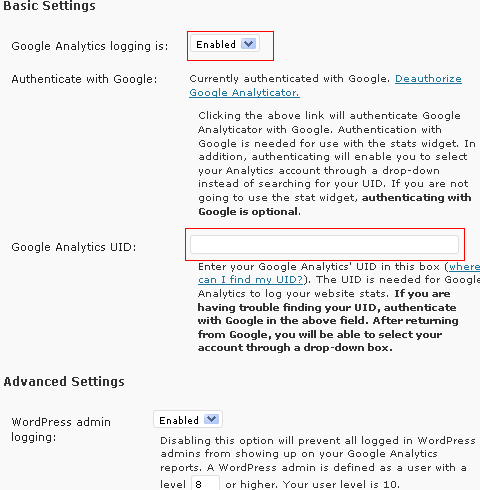
Just download the plugin and activate it in the Admin Plugin panel. From the Google Analyticator Settings page, enable the logging and provide the Google Analytics UUID (Note: The Google Analytics UUID can be found after logging in your Google Analytics Account for e.g. http://www.yourdomain.com UA-XXXXX-X).
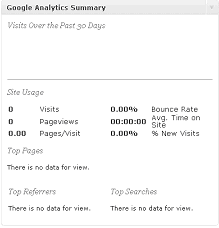
Once enabled, the summary visit from the last 30 days is displayed on the Admin dashboard.
The plugin also comes with a widget which can be used to display the visits on the site. Just drop the widget on one of the sidebars and do the settings for its display and you are done.
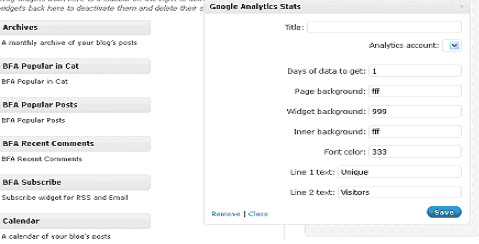
Once this is saved you can see the number of visits on the sidebar.

Pros
- Easy to integrate in the WordPress blog as no code changes in the template are required.
- All setting can be done through the Admin Settings panel.
- A quick summary can be seen on the Admin Dashboard for the last 30 days. You don’t need to login to your Google Analytics account for a quick summary.
- A widget is presented to display the number of visitors.
Cons
- A Google Analytics account is needed to track the visitors.
- Only supports WordPress 2.7 or higher
- All the tracking data is not presented on your database but is stored in Google.
- The graphs shown by Google Analytics is not shown in the Admin Section. For that, one has to log in to the Google Analytics account.
Official StatCounter Plugin
The Official StatCounter Plugin is a very good plugin to integrate StatCounter with WordPress Blog. No template code changes are required to integrate StatCounter with WordPress through this plugin.
StatCounter.com is a free (limited storage which storage can be increased by paying a fee) and effective way to get statistics about a website. Personally I feel it’s much less complicated that Google Analytics where simple statistics about a site are required.
To integrate the plugin you need to have a StatCounter account. First of all, you need to download this plugin and activate it from the WordPress Admin Panel.
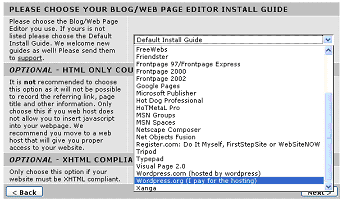
Then, in your StatCounter Account click configure and install plugin and follow the normal steps. When the option for Please Choose your Blog/Web Page Editor prompts, choose WordPress.org (I pay for the hosting).
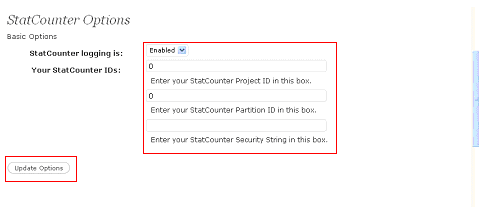
Once you obtain the install code, from the code take the fields of Project ID, Partition ID and Security String. Enter those fields in the plugin setting page, enable the logging and click update option.
Once this is done you are ready and you can see your stats in your StatCounter account.
This plugin is really good and easy to use especially if you are already familiar and like StatCounter.com
Pros
- Easy to integrate in the WordPress blog as no code changes in the template required.
- All settings can be done through the Admin Settings panel.
- If the user already has a StatCounter account, then only a new project needs to be added for your blog.
- Easy and simple to use.
Cons
- A StatCounter account is needed to track the visitors.
- No widgets is presented to show user the visitor count.
- All the tracking data is not presented on your database but would be stored with StatCounter.
- No Statistics are present in the Admin dashboard section.
WordPress.com Stats
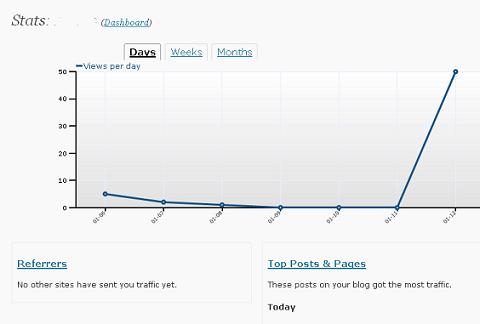
The WordPress.com Stats plug in is a very nice plugin with a lot of different statistics. All the Statistics are displayed in the admin dashboard area. Hence it becomes very convenient to see the entire statistics. Also the page visits can be seen in different views like daily visits view, weekly or monthly visits views.
WordPress.com Stats also gives a lot of other stats which are useful for SEO and marketing purposes of the blog like the top pages and posts, the top referrals to your blog, top search engine keywords used to your blog etc.
To add this plugin to your WordPress blog you need to download this plugin and put it in the plugins folder of your WordPress installation.
You need to have an account on WordPress.com for this plug in (you don’t need a blog on WordPress.com; just an account will do). When you have an account on WordPress.com you will get an API key which would be on your profile page of your WordPress.com account.

Once you activate the plugin from your admin plugin section you will have to add this API key. Once that is done you have to click Add to WordPress.com Account. Then it would take around 20 minutes for your stats to start appearing.
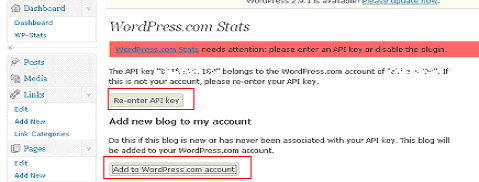
Once the above steps are done then from the dashboard you can view the statistics for you blog.
Pros
- Easy to integrate in the WordPress blog as no code changes in the template required.
- All settings can be done through the admin Settings panel.
- A lot of different types of statistics are shown like the top pages and posts, the top referrals to your blog, top search engine keywords to your blog etc.
- The statistic is displayed in the admin section. So no need to log into some other sites to see the stats.
- Some of the stats are shown in graphical format which is pleasing to the eye.
Cons
- One needs an account on WordPress.com
- No widget is presented to show user the visitor count
- All the tracking data is not stored in your database but would be stored with WordPress.com.
- Detailed statistics like information about browsers of visitors, operating systems of visitor are not present like the Google Analytics or the StatCounter discussed above.
WP-Stats
WP-Stats is a very simple and easy to use Stats plug in. This plugin does not give stats about users but instead gives stats about the content of the blog. This plugin helps one to know how many posts, pages, comment authors etc. are there on your blog.
This kind of statistic help to know how your blog is growing specially if there are multiple authors contributing to the blog.
Also all the statistics about the blog are stored in the blogs database only, so the data is not shared by any other site.
To add this plugin to your WordPress blog, just download the plugin and put it in your WordPress plugin directory. Then from the admin panel just activate the plugin.
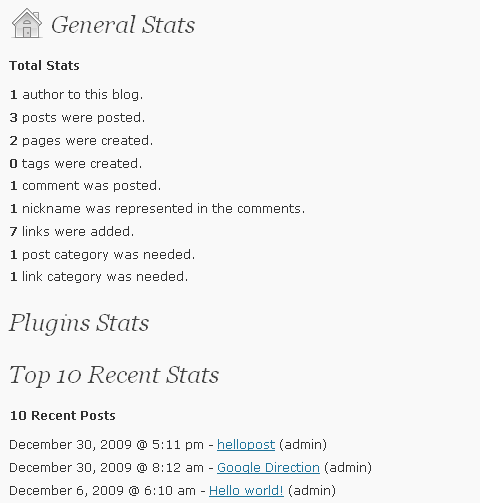
You can configure from the settings page which stats are to be displayed like the 10 most commented pages or the author stats or other miscellaneous stats as shown below.
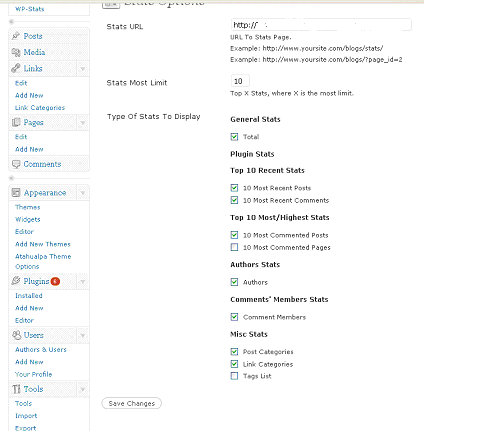
Once the settings are saved on your dashboard you are able to see the stats related to your blog content on the admin dashboard.
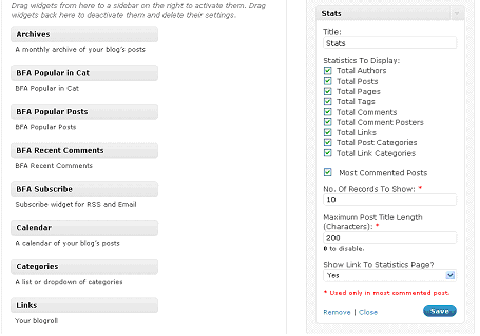
This plugin also has a widget with it. This widget would show the stats about the content of the blog to the users which helps the users to understand the popularity of the different articles on the blog and which authors are contributing more to the content of the blog.
Just drop the widget in the sidebar and choose to display the stats and save it.
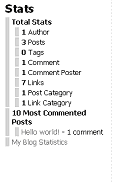
Once that is done the stats would be displayed in the sidebar as shown below.
Pros
- Very Simple and easy to use.
- All settings can be done through the Admin Settings panel.
- Detailed stats about all the content of the blog are displayed.
- All the content is stored in the blog’s database. No content is shared by other sites.
- A widget is presented to display the statistics about blog content to the visitors.
Cons
- All the stats are text based, no graphs of the statistics are present.
- No statistics about visitors is logged, only statistics about content is logged.
FeedStats
This is a very simple and effective plugin to get statistics about feeds of your blog.
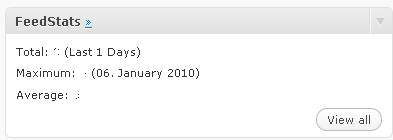
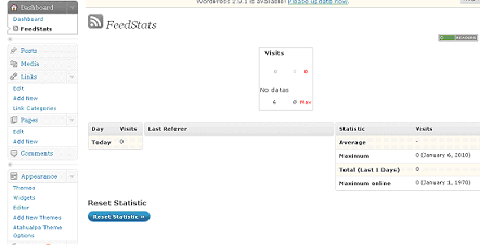
The plugin shows the feeds statistic on the dashboard. You can also configure how many days you need the statistics to last. Also you can configure an IP which is not supposed to be saved like your own IP 127.0.0.1
To add this plugin to your WordPress blog, just download the plug in and put it in your WordPress plug in directory. Then from the admin panel just activate the plugin.
Then from the settings page you can set the options for this plugin like for how many days the data should be logged, IPs to be blocked from logging etc.
Also the user level can be set for whom these statistics will be visible.
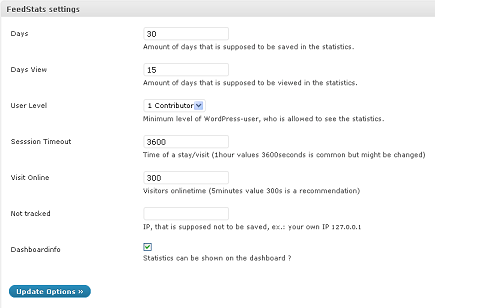
Once the Settings are saved, the stats can be seen on the dashboard and the feedstats page as shown in the illustration below.
Pros
- Very Simple and easy to use.
- Settings like how many days logging data should be present etc. can be configured.
- The minimum user level who can view the data can be configured.
Cons
- Detailed graph based stats are not presented.
- No statistics about visitors is logged; only statistics about feeds are logged.
Some other WordPress Statistics plugins that you could consider
- StatPress: a very popular Statistics plugin
- Wassup: track your visitors real time; see current visitors online, visitors’ details etc.
- CyStats: feature rich statistics plugin for WordPress
- PiWik Analytics: PiWik is the open source alternative to Google Analytics
- Generic Stats: put all Statistics tracking code in one place
- mySTAT: see more than fifty various types of reports
- WP-ShortStat: “a little statistics plugin”
- pixelstats: Count every viewer and every article view for each blog entry, no matter how and where it is read
- StatPress Reloaded: a highly improved fork of StatPress, this plugin shows you real time statistics about your blog
- See other Statistics plugins in the WordPress plugins directory
I love using StatPress .. very informative. thank you
i use statpress to view my statistis visitor 😀
vote for statpress
statpress is nice? okay. I will try it.
Check out wp-stats-dashboard: http://wordpress.org/extend/plugins/wp-stats-dashboard/
Displays stats / metrics in your dashboard.
I use nStatistics 2.0 (http://wordpress.org/extend/plugins/nstatistics/). I like it because it have graphs with zoom function and graphs per day and hours. It is great and olso I like row visits table and crawlers statistics witch is separate then users unique visits. Other stats plugins count in same place crawlers and real visitors witch always give a false statistics.
I will help you decide if it’s the right choice for you.
Never used wordpress.com stats before, nd tried it today after reading it from here… Awesome article!
.-= Gravity´s last blog ..What Is An Apex? =-.
Not using one right now. But I’m considering google analytics.
Cheers,
Pam
great list off course, but I think you forgot on of the best wordpress build-in plugin stats:
WP-Slimstat-Ex: http://082net.com/2006/756/wp-slimstat-ex-plugin-en/
adeux!
.-= dlv´s last blog ..De Copas =-.
My friend told me to use statpress and I’ve just seen new one statpress reloaded, higher average rating but Compatibility = “Not enough data” for wp 3.0.1 that means I can’t use statpress reloaded version, right?…
I decided to use the popular, statepress compatible with my 3.0.1 wp…
And thanks for your review
Well written. I will subscribe for sure.
Hello
I am using WP Stats
i want to know even my own visits is counted ?
you which plugin give me only daily,monthly and all time visitor stats only..
Hi, Today I found another new wordpress plugin for stats about content development flow. WP Author Report : The only productivity plugin for WordPress which will generate detail report how authors are working. http://onetarek.com/wordpress/plugins/wp-author-report/
I Request this post author to update this post by including “WP Author Report” plugin in the list.
Thanks for this good collection of plugins.
This tips is useful please keep posting about new plugins . Thanks for sharing
Nicely written.
Thanks for sharing 🙂